¶ Login to the User Interface
On the snapshot below is shown the typical login screen of the system. In this case we are showing the entry page with our logo for illustration purposes of this user manual. You have to enter your Username (the email address assigned to your account) and the password. Your account (user & temporary password) will be created by the administrator of your system.
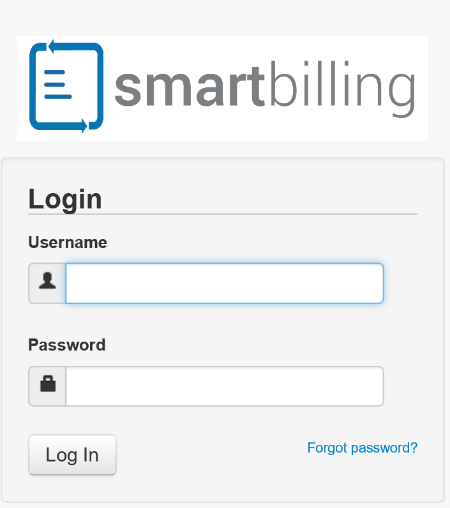
In case you don’t remember your password, please click on the Forgot password? link just below the password field. You will be prompted to enter your username. Enter it and then press Submit. The new password will be sent to you by email.
¶ Default View of the Platform
Once you’re logged in, you will see the default view of the Home page of the platform, which contains The main menu on the left and your home page (or widget). You can design which information to see in your home page as it will be explained below
.png)
In the right corner, just next to the avatar, you will see your username (the email address) and the company name. By pressing on the username, you can choose either to edit your profile or logout from the system. Also when you click on the calendar you will see all your activities that have assigned to you or that you assign to others. You can view the activities in list form or in calendar form. Also you see near your name or avatar the processes you are running, and links or documents you have seen. It logs the information for you so you have a quick reference place to see what actions have happened.
¶ User Profile Setup
If you press on the Profile button, you will be able to edit your profile.
You can change your name, language preferences, phone number or your avatar picture from the main window. Once you finish with the editing, press Save to preserve the changes.
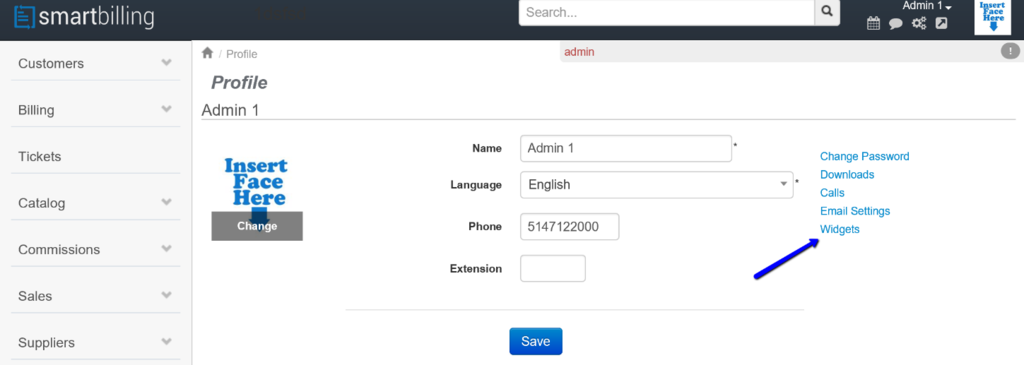
In addition, the links on the right (see arrow) allow you to manage the following functionalities:
¶ Change Password
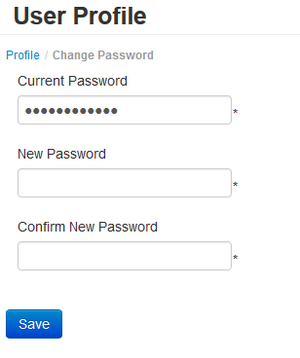
You can press on the Change Password link if you want to change it. You must enter your current password and the new one (and to confirm it). Because of security reasons, some conditions apply: at least 6 symbols in length, at least one letter and one digit. Press Save in order to save the changes.
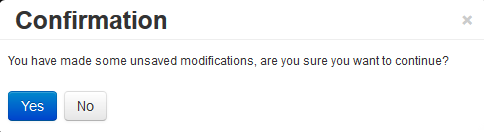
In any case, if you have some changes done, but try to close the profile screen, you will be prompted for the unsaved changes. You can either confirm that you want to leave the screen or to go back and save the changes, before to leave.
¶ Downloads
There you can find all the downloaded files – saved or temporary
¶ Call Management
In case of telecom integrations, you can find there the list of your calls. You can add a View, based on your wish, by pressing on View/+New View. You can also do a search, based on more criteria, by clicking on the arrow, next to the search box. You can sort your list by each column, by pressing on the column name. This is valid for all the tables in the system.
¶ Email Settings
By entering this option, you can edit your email settings: enable or disable the scan email feature, enable or disable the notifications by email and add or edit your signature. Our system allows you to send or receive emails directly through it. Do not forget to save the changes, once you finish!
¶ My Scheduled Reports
Here it is located the list of your scheduled reports. You can delete some reports, by marking the report and pressing the Delete button on the top corner
¶ Widgets
As a modern system, our billing solution supports “widgets” which means different configuration of the content you want to see in your home page. Using this menu, you can create, delete or edit different widget templates with 1, 2 3 or 4 columns with the information you want by dragging the content into the column you want. This is an easy way to access your most wanted functionalities, without to be necessary to navigate across the menu. The default widget for new users is the Home widget with calendar inside. In order to edit this widget, click on the name and you will see all the available options. If you want to delete an existent widget, just mark it and press on the Delete button.
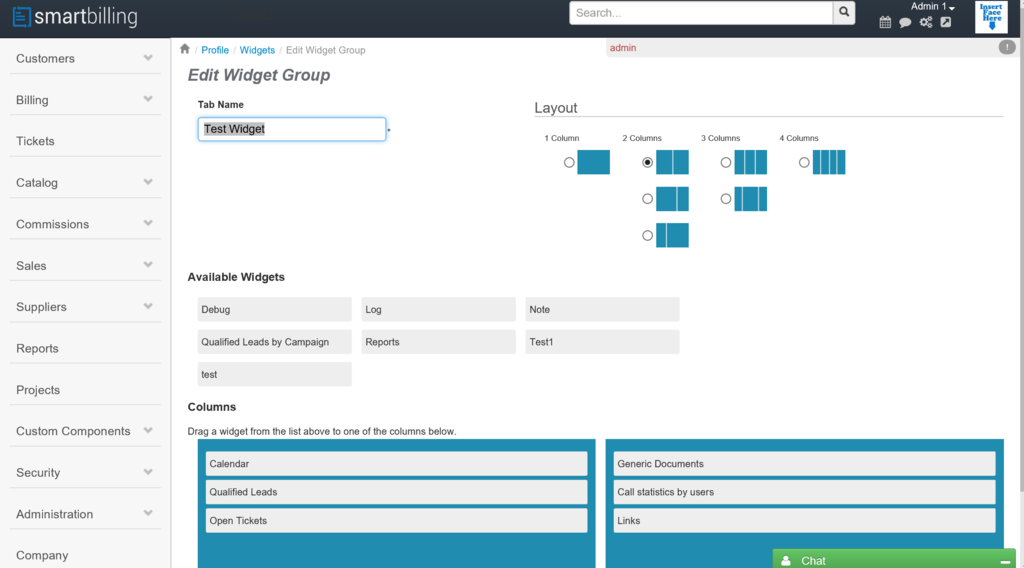
You can change the name, the layout, according to your needs and to drag and drop from (or to) the list of the available widgets. Once you finish, press on the Save button. From wherever in the billing system, you can go to your available widget, by pressing on the Smartbiling logo on the left top corner. Company This section is used to configure the data from the user company. This step is usually done at implementation stage, although is highly recommendable that the Company super user gets familiar with this section in order to practice any change that might occur in the future.